Duplicating a post or page in WordPress website can be incredibly helpful when you’re looking to save time and maintain consistency across your content. If you’ve crafted a page or post layout that you’re particularly proud of, or you’ve spent hours getting the formatting just right, it makes sense to use it as a template for future content. Rather than starting from scratch each time, a Duplicate Post WordPress plugin allows you to make an exact copy of the page or post to retain the design and structure while updating the text or media as needed for the new copy.
The Duplicate Post option creates a great starting point as a template for your next post or for testing or trying something new without affecting your published content.
WordPress, out of the box, doesn’t include a one-click duplication feature, but don’t worry, the process is still straightforward. Numerous WordPress plugins can add this functionality to your dashboard, enabling you to clone pages and posts with ease. These tools can be especially useful if you run a site that requires content with similar formats, such as portfolio pieces, product descriptions, or regularly updated notices.
When you duplicate a page or post in WordPress, you not only replicate the content but also the settings, such as categories, tags, and featured images. It’s a seamless way to create a new draft that’s ready for your tweaks and additions. This simple technique can streamline your workflow, allowing you to maintain a uniform look across your site while efficiently managing your content creation process.
Understanding Post and Page Duplication in WordPress
When you’re working with WordPress, you might find yourself needing to duplicate a post or a page. This can save time, especially if you’re aiming to maintain a consistent layout or reuse content with slight modifications.
Why duplicate?
You do this for several reasons:
- Consistency: Maintain design and formatting across multiple pages.
- Efficiency: Reduce the effort of recreating similar content from scratch.
- Freedom: Make changes on a copy and see what they look like without impacting the original
To duplicate content, WordPress does not include a built-in feature, so you’ll need to use a plugin. There are many plugins available, but one of the most popular are Duplicate Post or Yoast Duplicate Post. Here’s how you can use it:
- Install the Plugin:
- Go to the ‘Plugins’ section in your WordPress dashboard.
- Click ‘Add New’ and search for ‘Duplicate Post’.
- Install and activate the plugin.
- Duplicate Content:
- Navigate to the ‘Posts’ or ‘Pages’ section.
- Hover over the item you want to duplicate.
- Click on ‘Clone’ to create a draft copy.
Remember, after duplication, thoroughly check the cloned post or page. You’ll need to update:
- Titles: Avoid duplicate titles which can confuse readers (and search engines).
- SEO Settings: If you’re using an
SEO plugin, ensure settings are unique for each page. - Permalinks (slug): WordPress generates a new permalink for the duplicate, but it’s good to verify this.
- Featured Image: This will be kept the same unless you change it
Duplication is a practical tool in your WordPress toolkit, but employ it wisely to maintain the quality and uniqueness of your site.
Methods for Duplicating Content
You can replicate a WordPress post or page either manually or with the help of plugins. Each approach has its own specific steps and benefits.

Manual Duplication
To manually duplicate content, you’ll need to:
- Navigate to the Posts or Pages section in your WordPress dashboard.
- Click on the title of the post or page you wish to copy.
- Highlight and copy (Ctrl + C or Cmd + C) all the content within the text editor.
- Head back to the Posts or Pages section and select Add New.
- Paste (Ctrl + V or Cmd + V) the content into the new post or page editor.
- Don’t forget to copy and replicate the original post’s or page’s title, permalink, categories, tags, and featured images.
Using Plugins for Duplication
For a more efficient method, plugins can automate the duplication process:
- Install and activate a duplication plugin like Duplicate Post or Yoast Duplicate Post.
- Once active, navigate to the Posts or Pages section in your WordPress dashboard
- Click on the title of the post or page you intend to duplicate.
- Click on Clone or New Draft to create a duplicate with a single click.
This method maintains all the metadata, such as tags and categories, and saves you time.

Exploring Duplication WordPress Plugins
When managing your content on WordPress, you’ll find duplication plugins to be incredibly handy tools. They allow you to quickly clone posts or pages, saving you time and effort on repetitive tasks.
Yoast Duplicate Post
Yoast Duplicate Post is a popular plugin that simplifies the process of cloning your posts, pages, and even custom post types. When you install this plugin:
- You can duplicate your content with a single click from the post/page list or the edit screen.
- You have the ability to copy to a new draft or rewrite & republish, affording you flexibility in managing content updates.
- It also includes features to reset the date, copy post status, and exclude certain fields from being duplicated, which can help maintain your website’s organization.
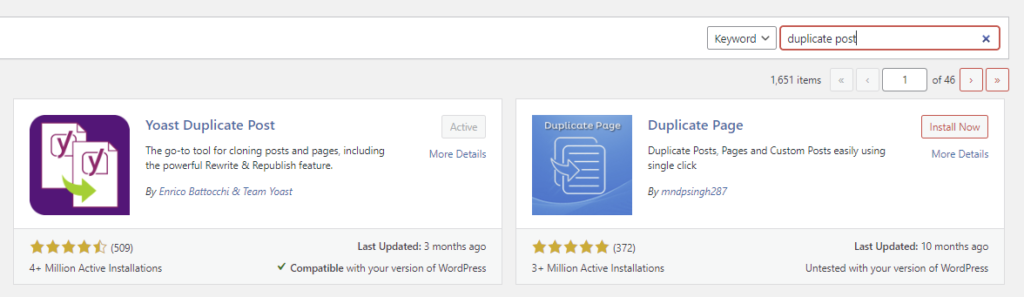
Duplicate Page
Another handy plugin is Duplicate Page, which focuses solely on cloning pages within WordPress. With this plugin:
- It enables you to create a duplicate page and save it as a draft, private, public, or pending review with a quick click.
- Shortcodes can be used to streamline your workflow further by implementing duplication features directly into your posts or pages.
- This plugin is renowned for its lightweight design, which means it won’t slow down your site.
By utilizing these plugins, you can significantly streamline the content management process on your WordPress site.
Alternate Plugins
At the time of this publication, there were other duplicate post or page plugins available, but Duplicate Page and Yoast Duplicate Post had the most downloads by far and both have good ratings.

Customizing the Duplicated Content
After duplicating a post or page in WordPress, your next step is to customize the content to suit your needs. You’ll want to ensure the new version serves a unique purpose on your site while maintaining consistency in style and format. Here’s how you can customize your duplicated content efficiently:
- Title and URL: Change the title to reflect the new content purpose. Remember to update the permalink (URL) accordingly to avoid conflicts.
- Body Content:
- Use the WordPress editor to revise text, ensuring it’s fresh and relevant.
- Incorporate new images or videos to enhance engagement.
- Metadata: Update the meta description and keywords to align with the new content and improve
SEO . - Categories and Tags: Reassign categories and tags to organize your content suitably and help users find it.
- Featured Image: Replace the featured image to give your post a new look and make it stand out.
If you are looking to keep a formal list of changes, use the table below to keep track of your customization:
| Element | Original | Customized |
|---|---|---|
| Title | Original Title | New Title |
| Permalink* | /original-url | /new-url |
| Meta Description | Original Meta | New Meta |
| Keywords | Original Keywords | New Keywords |
| Featured Image | Original Image | New Image |
*Retain your old permalink for the published version of your page, even if you are replacing an existing post or page with a new one. The attached video shows how to do this. You never want to change an already published permalink if at all possible. And if you must ever remove a published slug without replacing it, make sure to add a redirection plugin so you don’t get 404 errors for the old link.
By taking the time to adjust these elements, you can repurpose your content while maintaining a professional and coherent presence on your WordPress site.

Managing Duplicate Content SEO Issues
When you duplicate a post or page in WordPress, you should be cautious about the potential SEO issues that can arise. Duplicate content may affect your site’s search engine ranking, but with proper management, you can mitigate these issues by simply making sure that only one version is published at a time or by changing the new version to a completely different post or page, while retaining the formatting from the prior version.
Remember to review and update the
If you are using this as a template for your next post or page, when creating new posts or pages, ensure you provide unique titles and meta descriptions to differentiate from the originals:
- Title: Make sure each page has a unique and descriptive title.
- Meta Description: Write a distinct summary that reflects the page’s content.
- Slug: Always only have one slug per post, never duplicate slugs.
Swapping Duplicate Posts Slug Management
If you are replacing a post or page with an existing post or page, you need to take care to change the slugs correctly.
- Keep the new page or post as draft for the time being. Keep the original page or post as published.
- Get to the place where you change change the slugs – you do this in the backend of WordPress by going into the list of posts or pages and clicking “quick edit”
- On the original page or post, change the slug by simply adding a number to it for clarity.
- Then go to the new post and give it the original slug (without the added digit).
- After this is done change the new post or page to published.
- Then change the original post or page to draft.
- This should seamlessly retain your slug and allow you to swap out any post or page for a new alternate version, so you can make changes on draft to your heart’s content without affecting the original until you are ready to swap it out.
- If you have a redirection plugin already in place, double check that the changes don’t create an unintended impact.
Your Turn
Have you used a duplicate post WordPress tool? Have you found it to be super-helpful too? If you haven’t tried it yet, give it a go. You might find yourself joining the fan club too. Share your comments below and let us know your thoughts on duplicate post WordPress plugins.